

Making an event repeat needs the Events permission. The Repeat setting appears once your group has a Timezone set in Settings › Group Settings, because the schedule follows your group’s local time: a 7pm event stays at 7pm when daylight saving time starts or ends.
Making an event repeat
1
Open the event
Open the event’s page, press Organizer tools and choose Edit event, which opens the Event Organizer interface. The Admin Event Editor has no Repeat setting, so save an event you start there first, then open it this way.
2
Choose a schedule
Under Date and Time, set the Start time of the first date, then pick a schedule from Repeat. The choices follow the start date, such as Weekly on Thursday, Monthly on the last Thursday or Annually on October 29. The schedule is described in words below the list.
3
Choose how the dates are announced
Pick one of the Announcements choices, described below.
4
Save
Press Save.
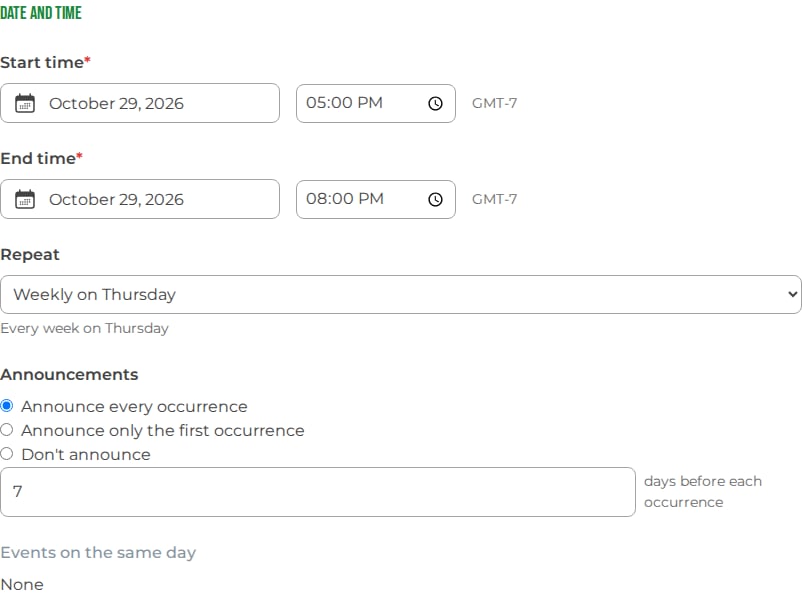
A weekly schedule, announcing each date a week ahead
A custom schedule
Choose Custom… in Repeat for a schedule the list doesn’t offer:- Repeat every sets how often, in days, weeks, months or years: every 2 weeks, every 3 months.
- For a weekly schedule, Repeat on picks the weekdays, so one series can run on Tuesdays and Thursdays.
- For a monthly schedule, choose between a day of the month, such as Monthly on day 15, and a weekday, such as Monthly on the 2nd Saturday or the last Friday.
- Ends stops the schedule Never, On a date, or After a number of dates.
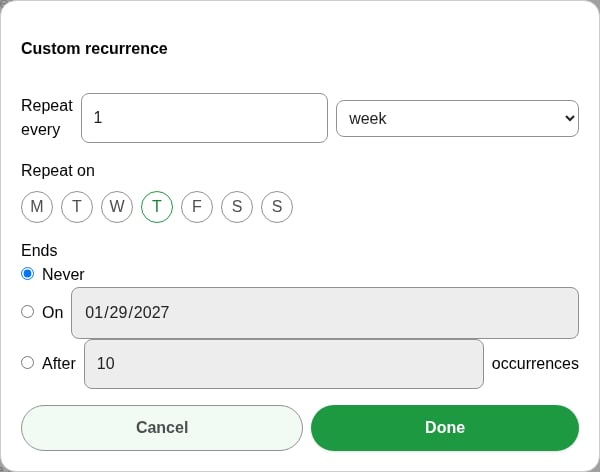
The custom schedule dialog
Announcing the dates
Announcements decides which dates send your members an announcement email and push notification:
A date that is still a draft isn’t announced, and a date that isn’t announced is still on your calendar from the day it is added. Changing the choice later applies to every date that hasn’t been announced yet. See Publishing and announcing for who an announcement goes to.
Editing a date
Edit one date of a repeating event the way you edit any event. When you save, GroupFlow asks which dates the change applies to:- This event: only the one you are editing.
- This and following events: this one and every later date.
- All upcoming events: every date that hasn’t started yet.
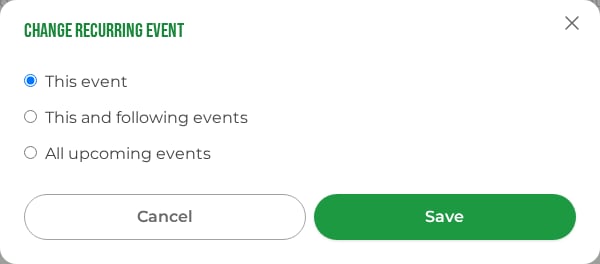
Choosing which dates a change applies to
Changing the schedule
Pick a different Repeat schedule on one of the dates and save. Change recurring event offers only This and following events: a new schedule applies to that date and every one after it, and earlier dates stay as they were. A later date that doesn’t fall on the new schedule is removed if nobody has registered for it. If people have registered, it is kept, and Events kept on the old schedule lists it with the number registered. Press Cancel beside any you no longer want to hold, then Done. To change only the time of day, change the Start time and End time and choose This and following events or All upcoming events. Each of the dates you chose moves to the new time, and keeps its registrations.Cancelling
Cancel a date the way you cancel any event: Cancel event in Organizer tools on its page, Cancel event in its menu in the admin event list, or Cancel in the Admin Event Editor. GroupFlow asks the same three questions as for an edit:- This event cancels the one date.
- This and following events cancels it and every later date, and ends the schedule there, so no more dates are added.
- All upcoming events cancels every date that hasn’t started, and ends the schedule.